All your tools.
In one place.
Vectorem is on your PC, on Windows and Linux: PDFs, screenshots, batch files, timer, notes, tasks, Vectorem Vision for your videos and music, Prisme for your photos… in one window. Turn on what you use, no account, and your data stays on your computer.
Windows will show a warning when you run it: that's normal for an installer that isn't signed yet. See what to do →
The download opens here.
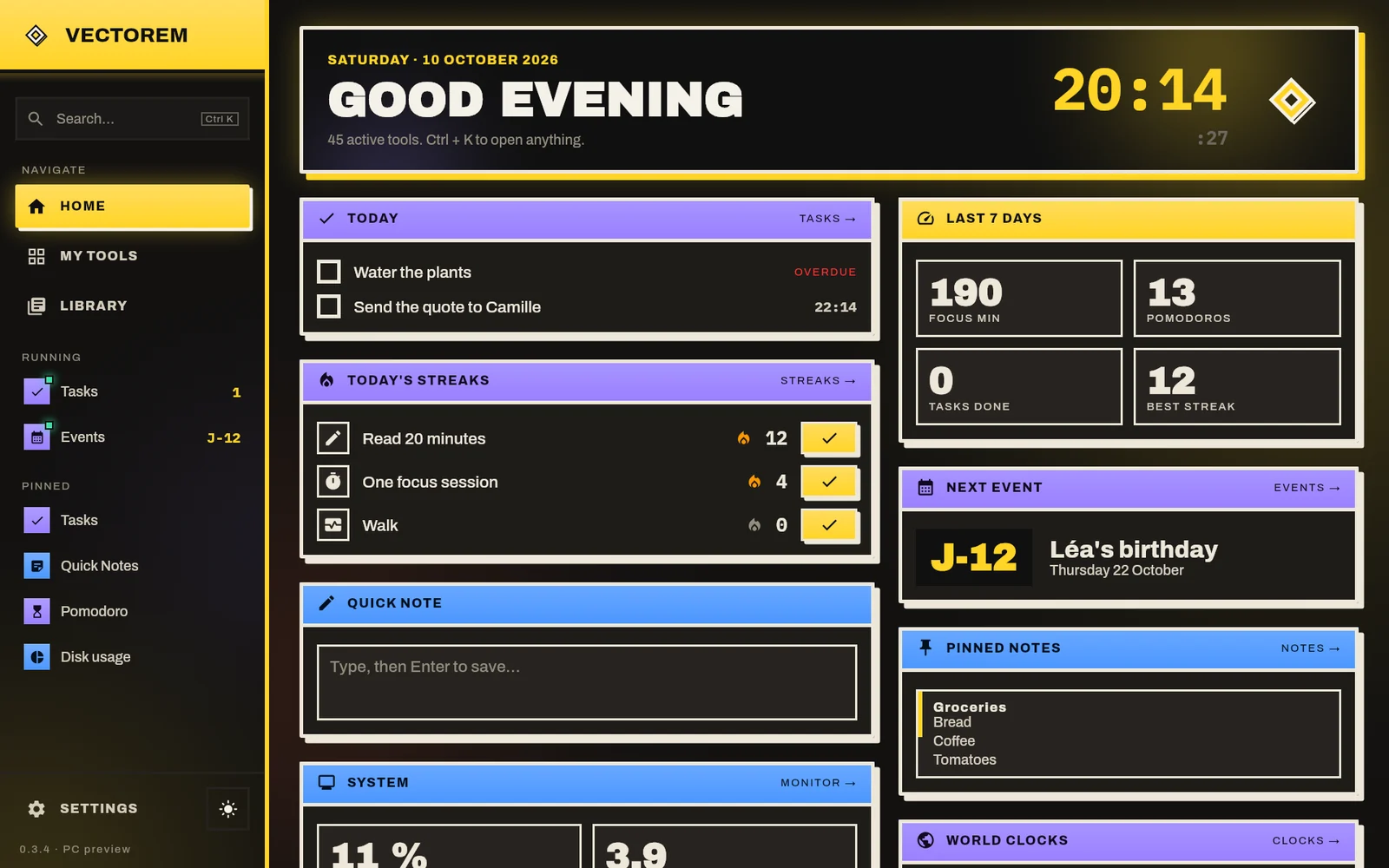
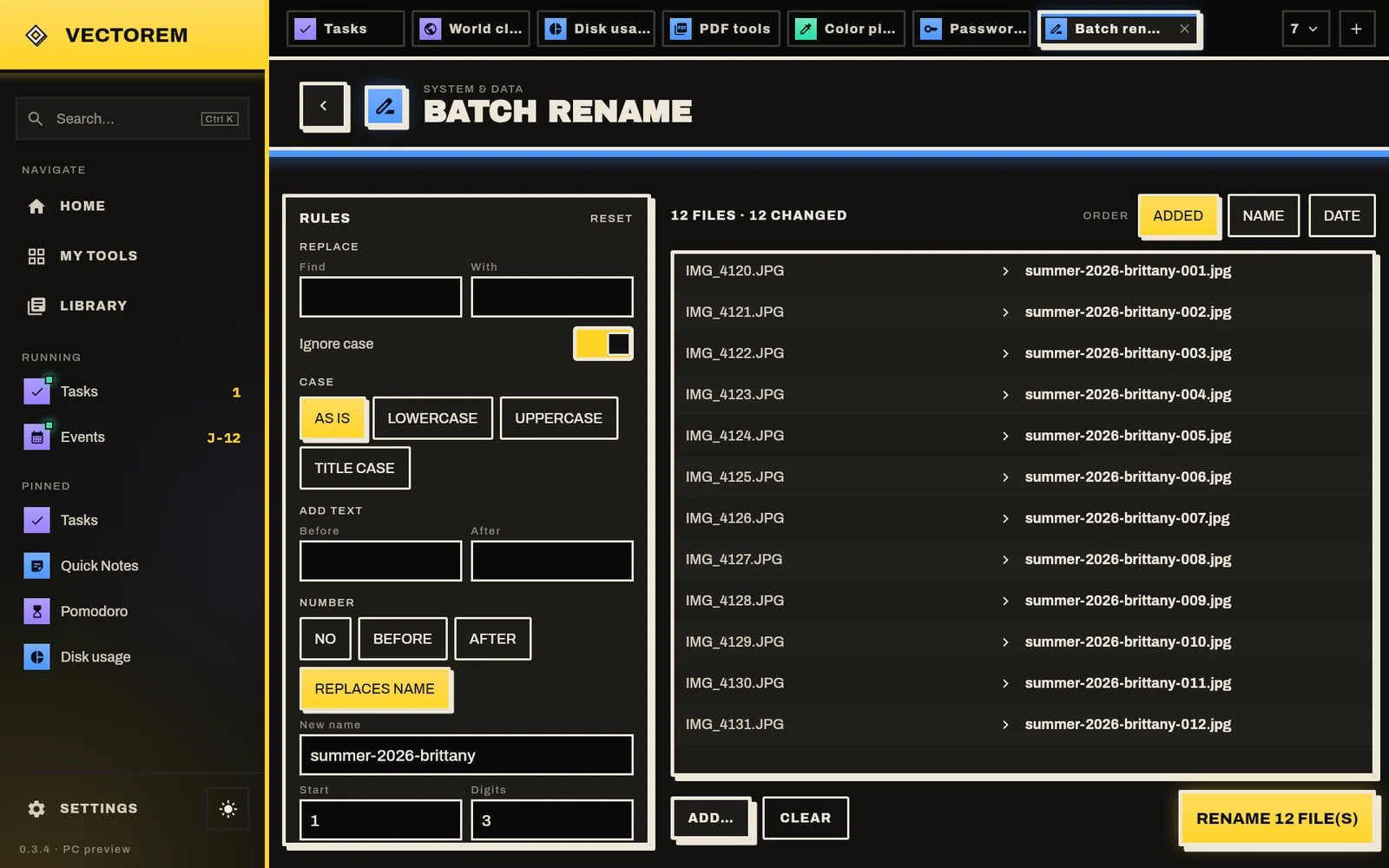
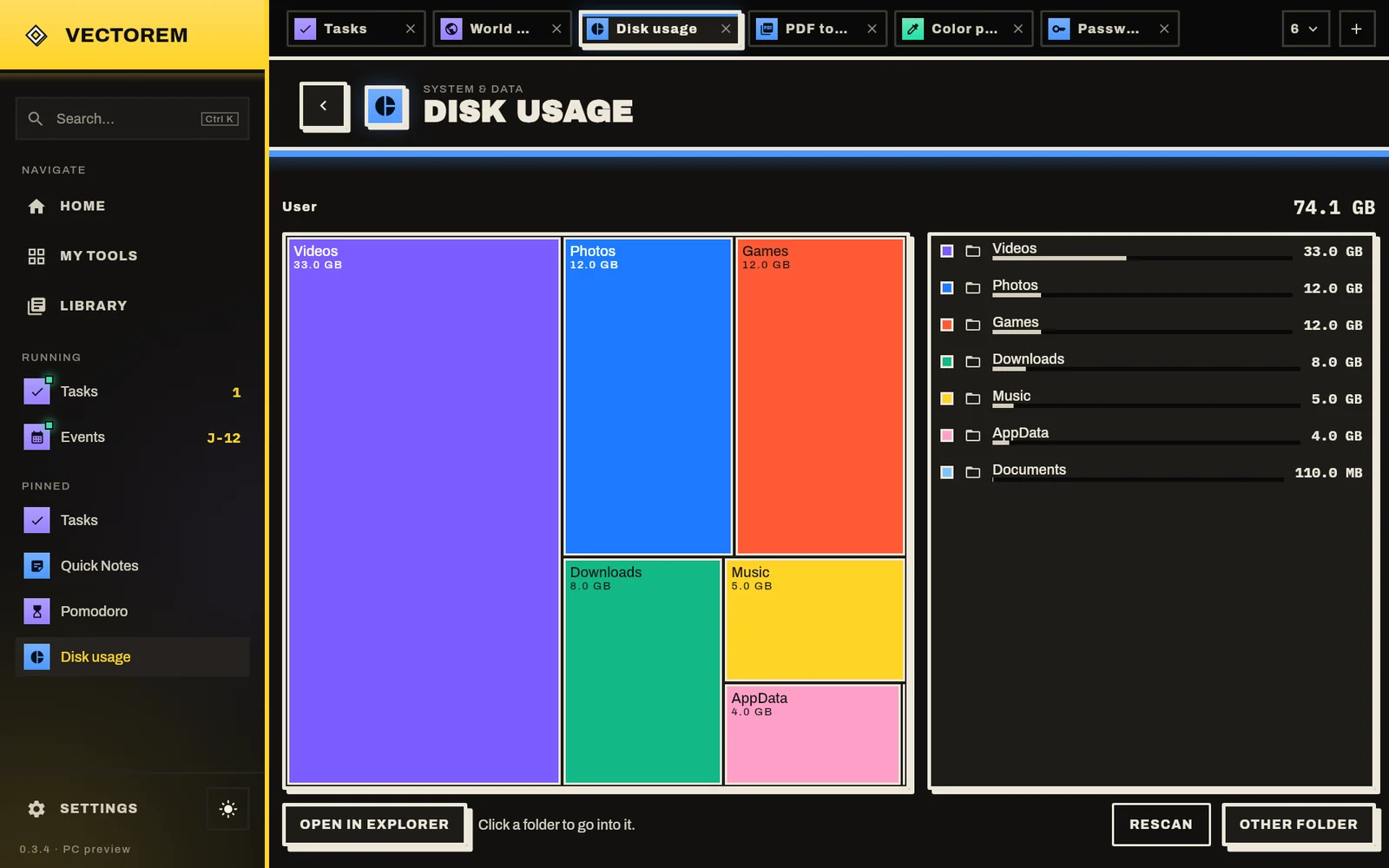
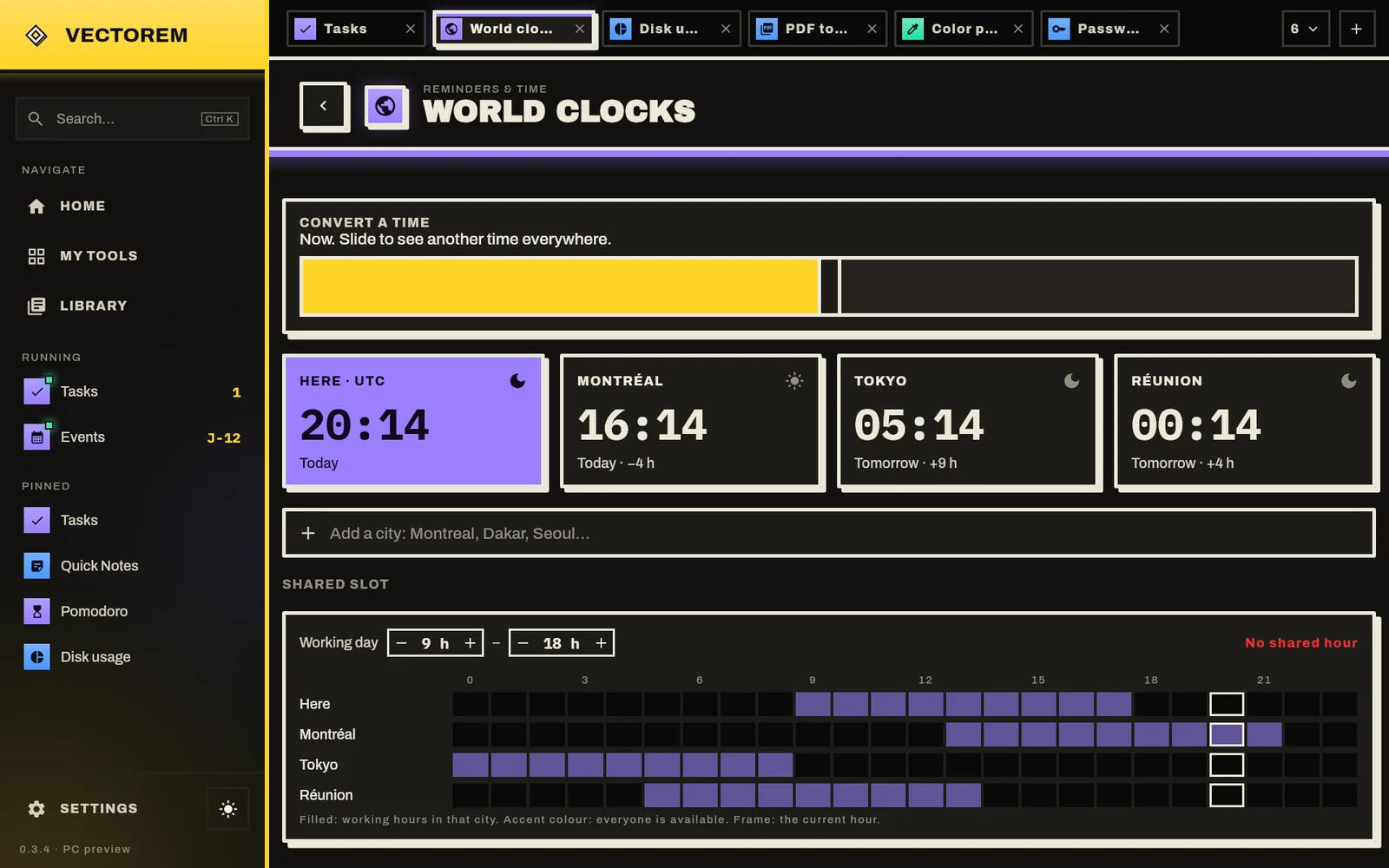
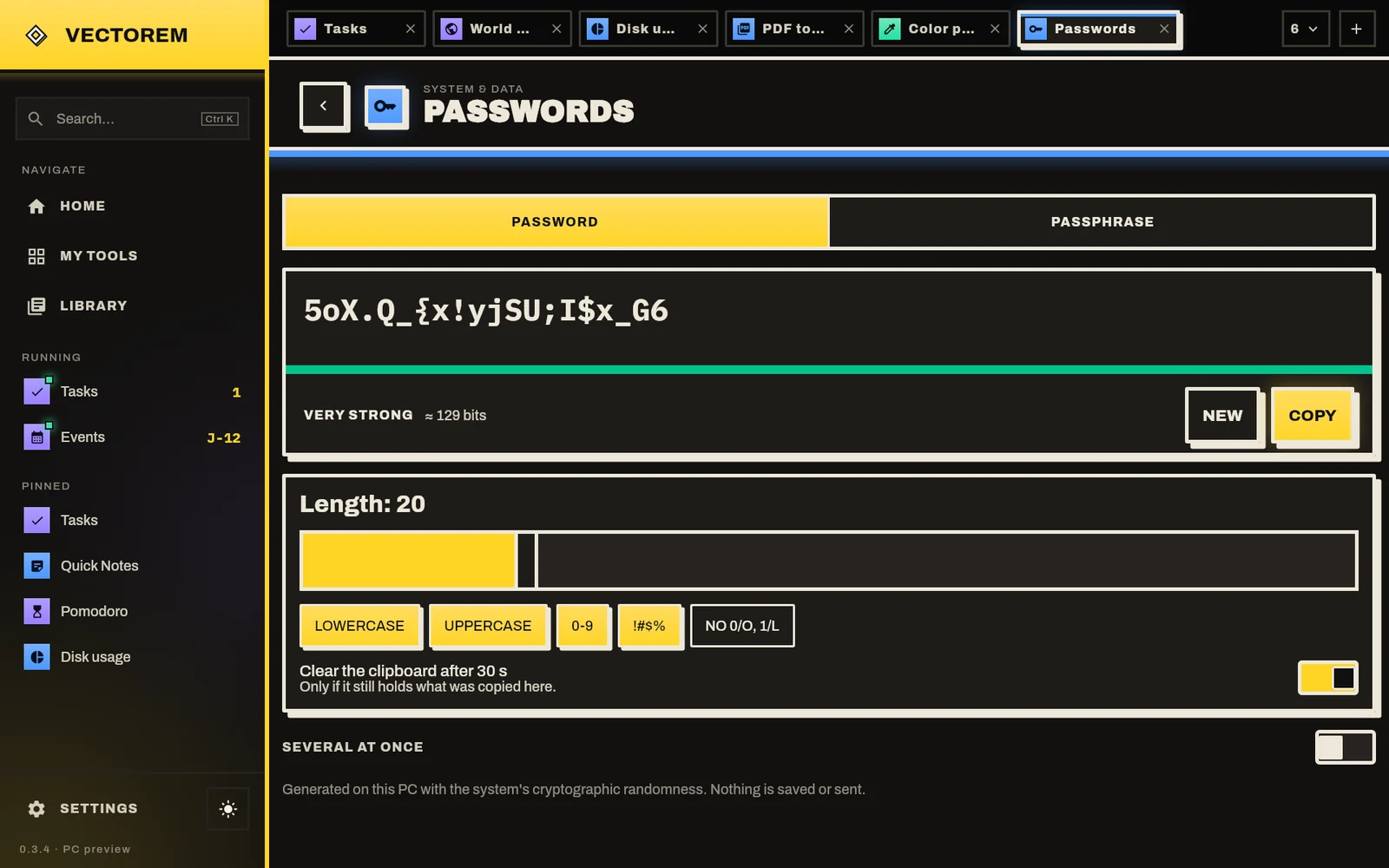
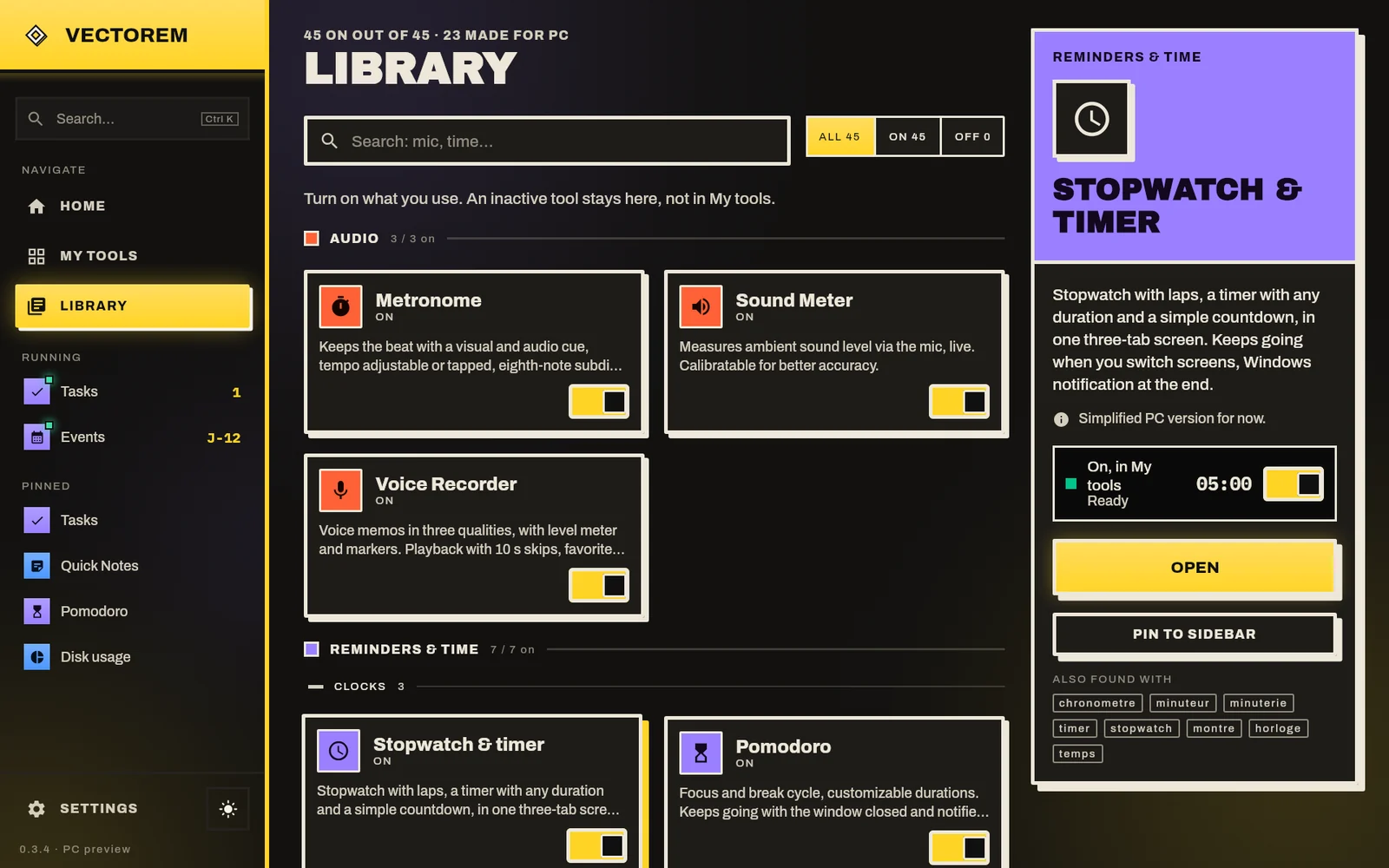
A tiled home: today's tasks, streaks, next event, quick note.
What's new in 1.3
In this page's download, and as an update from the app.
Vectorem Prisme
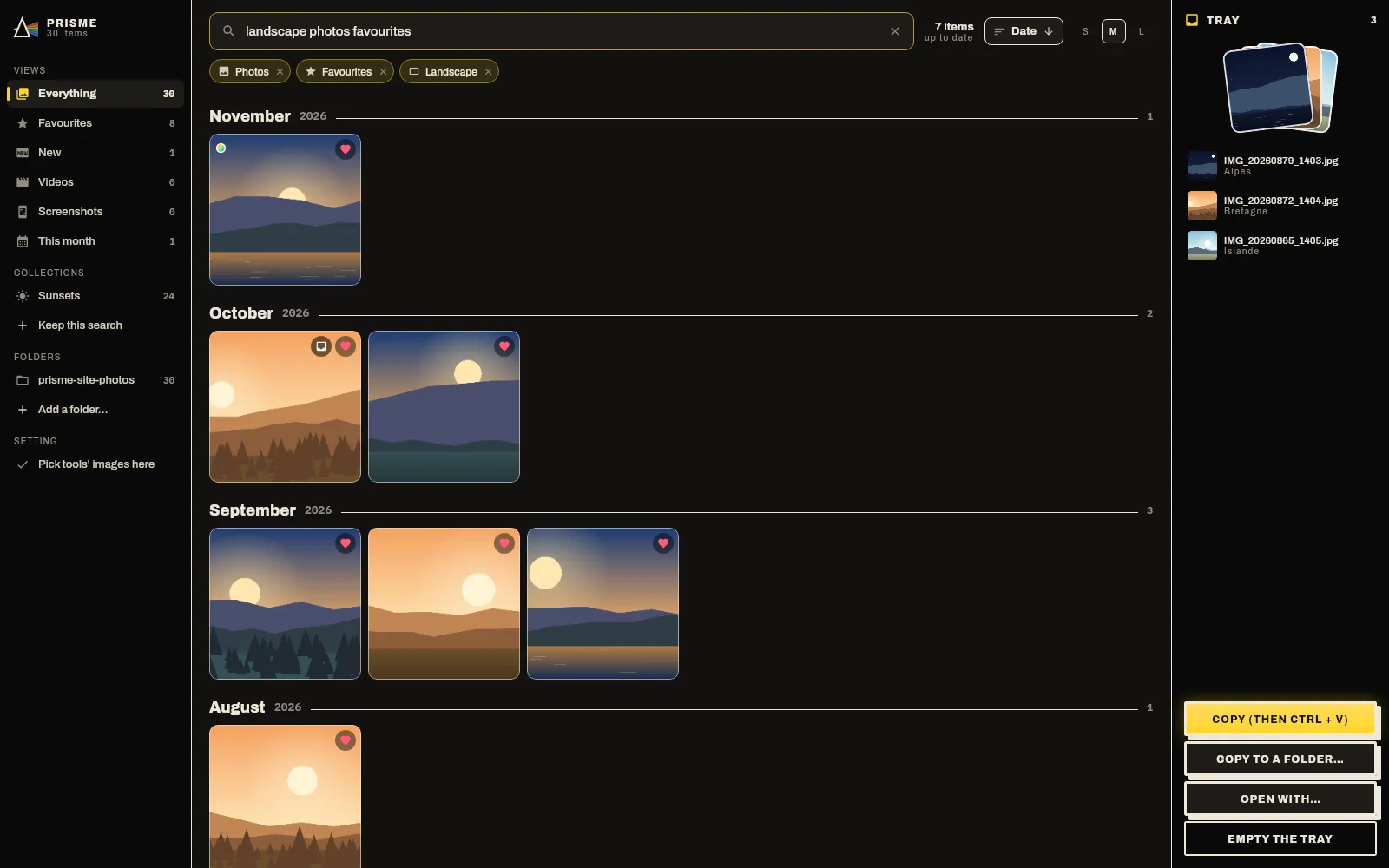
A gallery for the photos and videos on your PC. Search by typing a sentence, group them in collections that keep themselves up to date, and edit without leaving the gallery. When a tool asks for an image, Prisme opens.
- Search in sentences. “videos over 2 min in 2024”, “screenshots this week”: in English or French.
- Tray and drag and drop. Set photos aside, drag them to a tool, File Explorer or an email.
- Full editing. Adjustments, curves, crop, straighten, styles, unlimited undo. A copy or the original, your choice.
- Keyboard friendly. Arrow keys, rectangle selection, slideshow, camera details, HEIC and RAW.
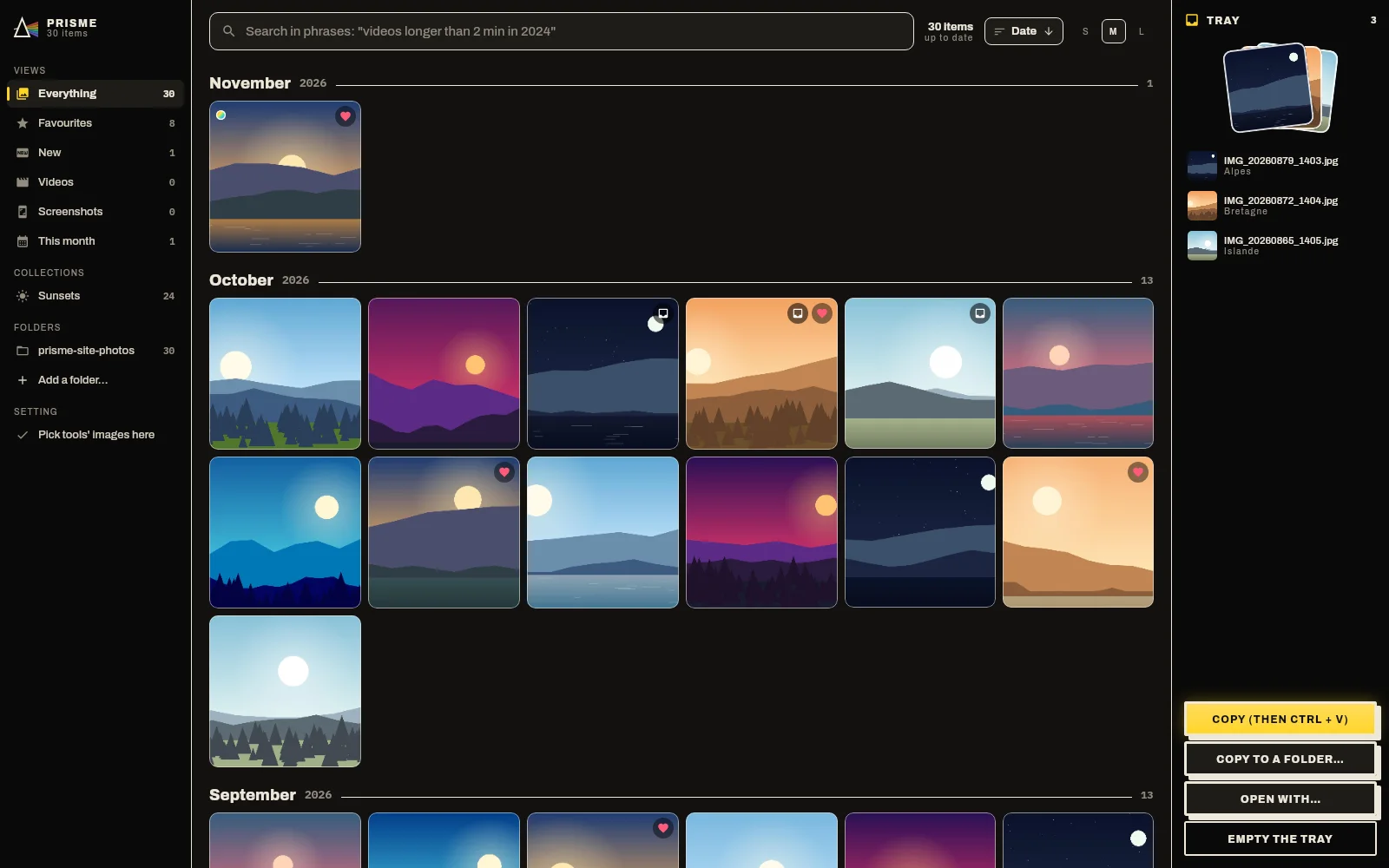
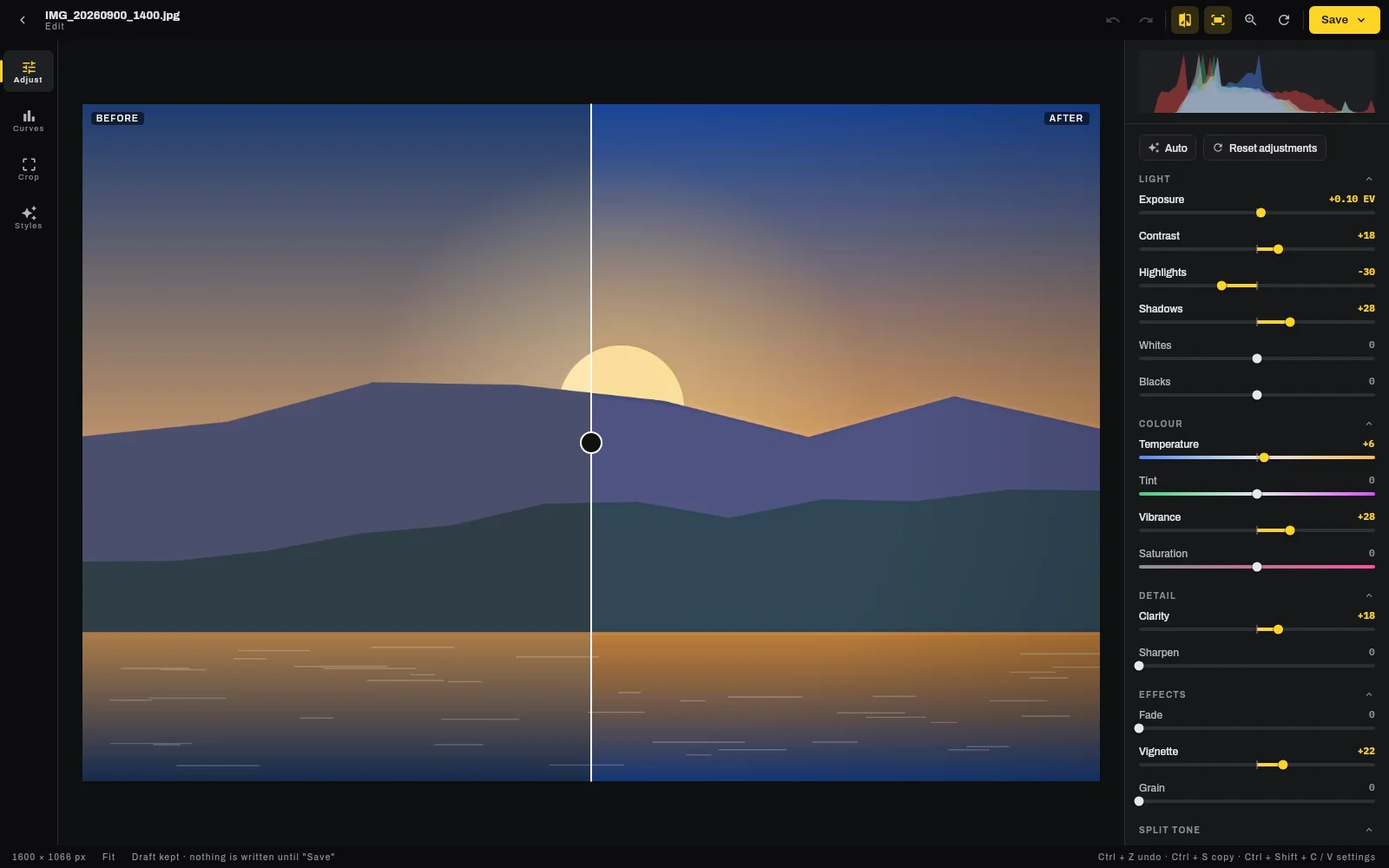
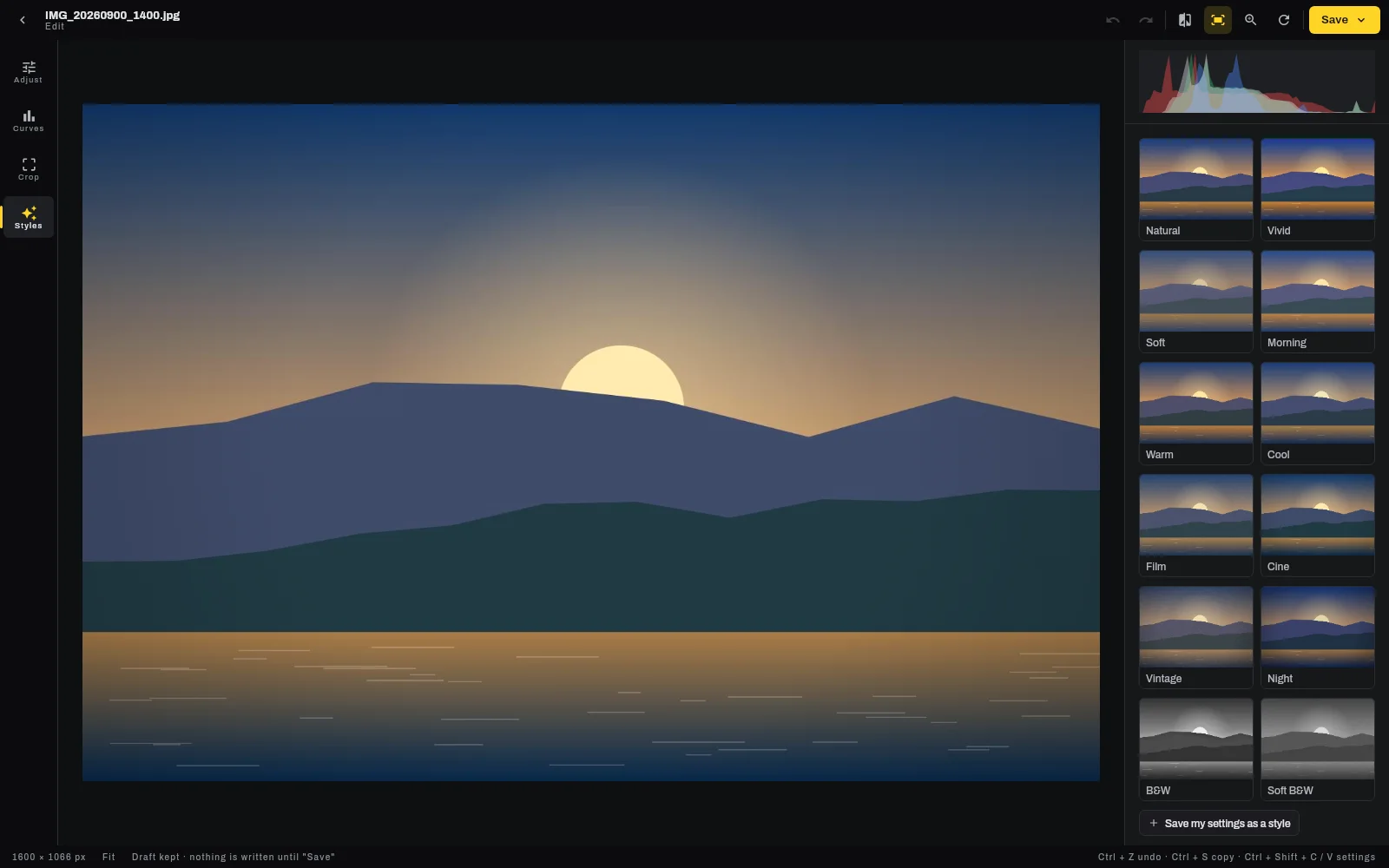
All your photos and videos by month, with the tray on the right to set aside what you want to send.
The Studio style
Another way to see Vectorem, more understated: graphite, thin lines, a dashboard on the home screen. For people who spend the day in the app.
- Rail and panel. Your tools grouped by family on the left, collapsible. Ctrl + B to make room.
- Status bar. What's running, CPU, memory, network and time, at the bottom of the window.
- The whole app. Tools, Settings, Vision and the Vigie follow the same style. Switch in one click in Settings.
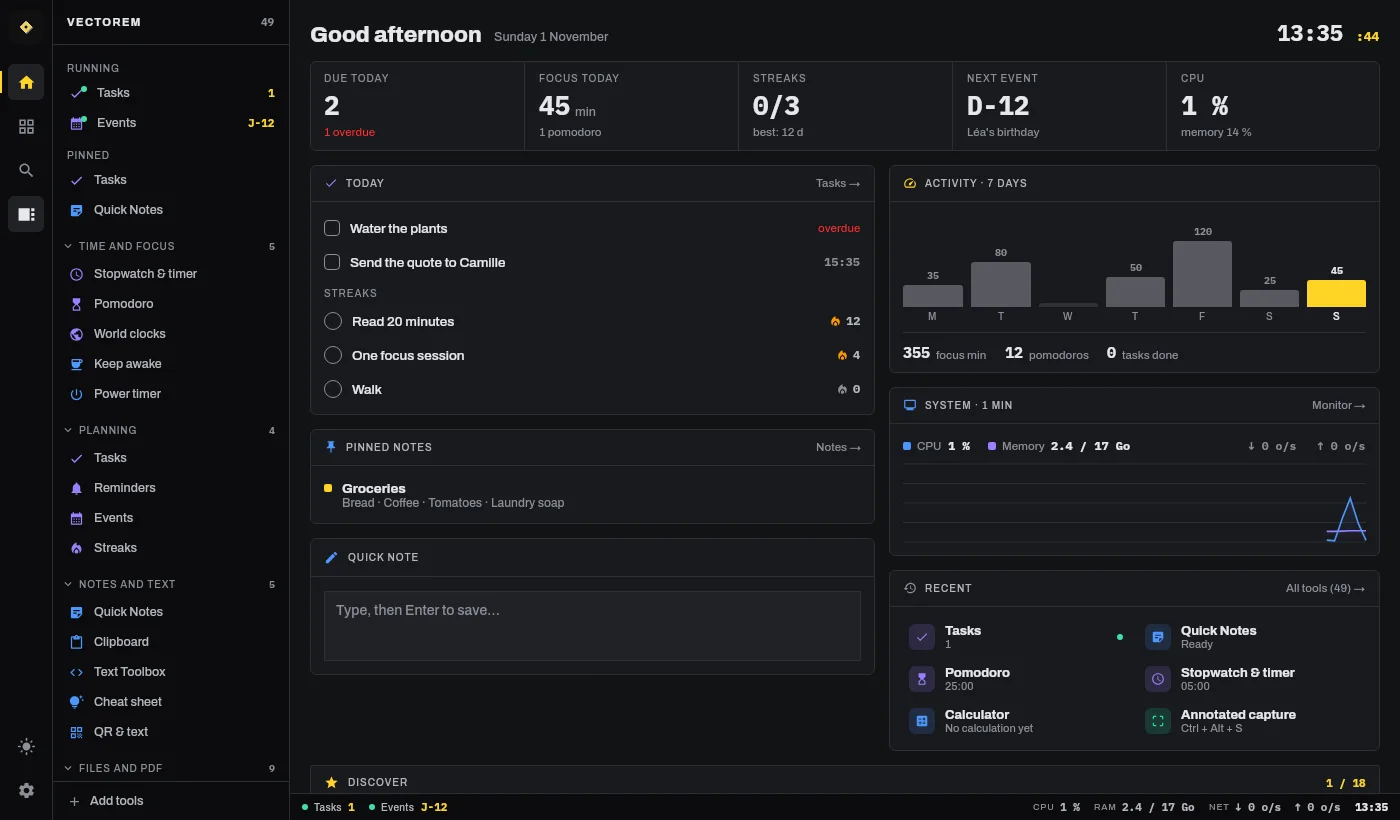
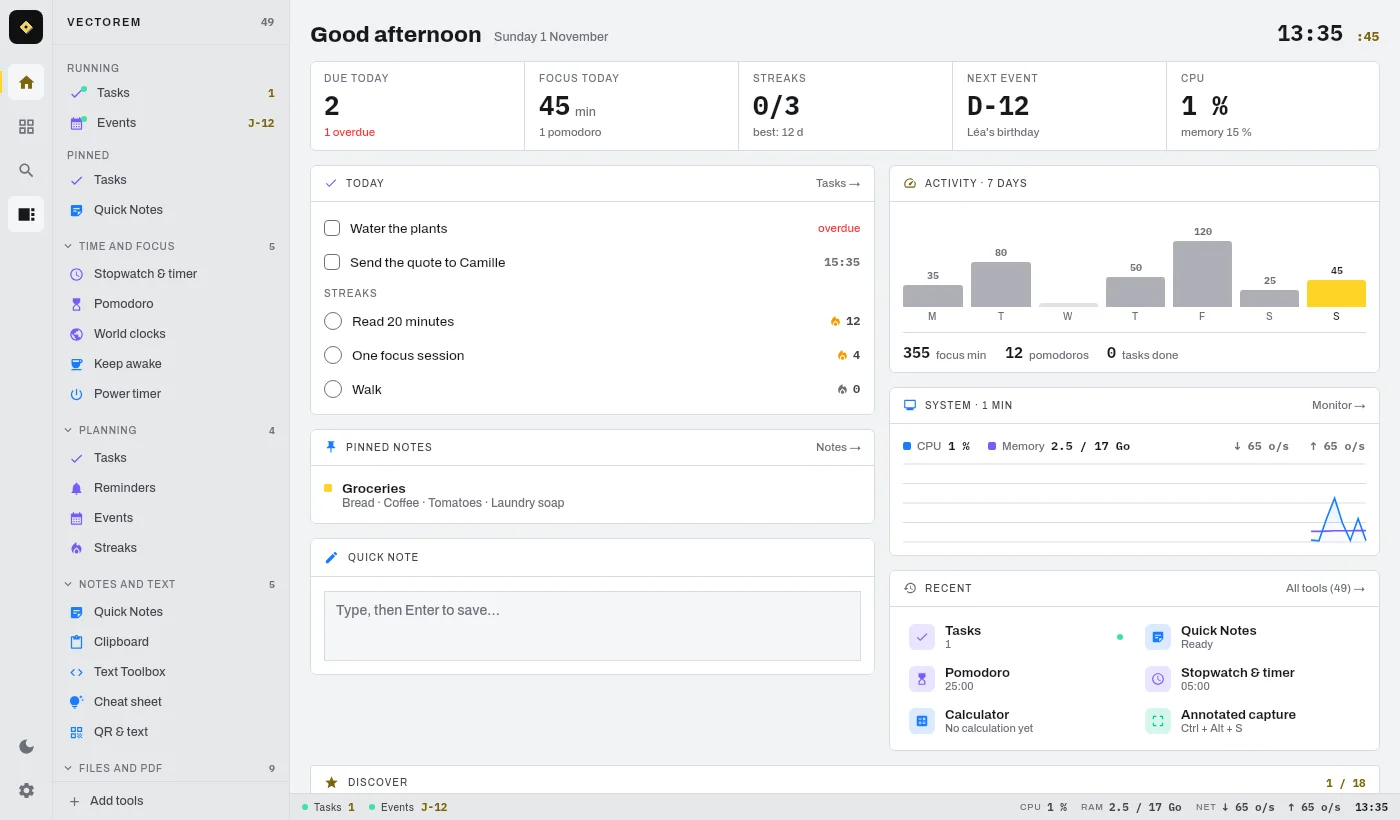
The dashboard: today's tasks and streaks, the week's activity, PC status, recent tools.
What the PC does best
On top of the phone's tools, Vectorem for PC adds the ones that only make sense on a computer.
PDF editor
Annotate, sign, fill forms, redact, replace text, reorder pages. The original is never overwritten.
PDF tools
Merge, extract pages, images to PDF, shrink a heavy file.
Vectorem Prisme
Your photo and video gallery, with sentence search, collections and editing. New in 1.3.
Vectorem Vision
Videos and music: resume where you stopped, skip the intro, sleep timer, generated subtitles, audio spectrum.
Transcribe
An audio or video file becomes text or subtitles, on the PC, in 7 languages.
Annotated capture
Grab an area, then arrows, frames, text, numbers and blur before saving.
Colour picker
The colour of any pixel on screen, in HEX, RGB or HSL.
Screen ruler
Measure anything on screen, in pixels.
Window layouts
Halves, quarters and thirds from the keyboard, on one or more screens.
Batch rename
Dozens of files at once, with a preview before applying and an undo.
Batch images
Resize and convert to JPG, PNG or WebP, many images at once.
Metadata
Read and strip hidden photo info (location, camera) before sharing.
Disk usage
What fills the disk, folder by folder. Read only.
Monitor
CPU, memory, disk and network in a small always-on-top window.
Keep awake
Keeps the PC awake during a download or a presentation.
World clocks
The time in several cities, and the common slot for a meeting.
File hash
SHA-256, SHA-1, MD5: check a downloaded file is intact.
Passwords
Passwords and passphrases generated on the PC. Nothing is stored.
Launcher
Your favourite folders, files and programs, one click or Ctrl + K away.
Unit converter
Lengths, masses, temperatures, bytes… eleven unit families.
Terminal
Maths, graphs, conversions, dates, and commands to drive the app.
Tidy folders
Your rules tidy a folder: by type, date, name. Preview first, undo after.
Folder copy
A copy to a USB stick or another drive: only what changed, even by itself when the drive is plugged in.
Power timer
Shut down, restart or sleep in an hour, or at 11 pm. Cancel it from your phone.
Cheat sheet
Windows shortcuts, and your own sheets of commands and memos.
And the ones you already know from Android
Vectorem Vision
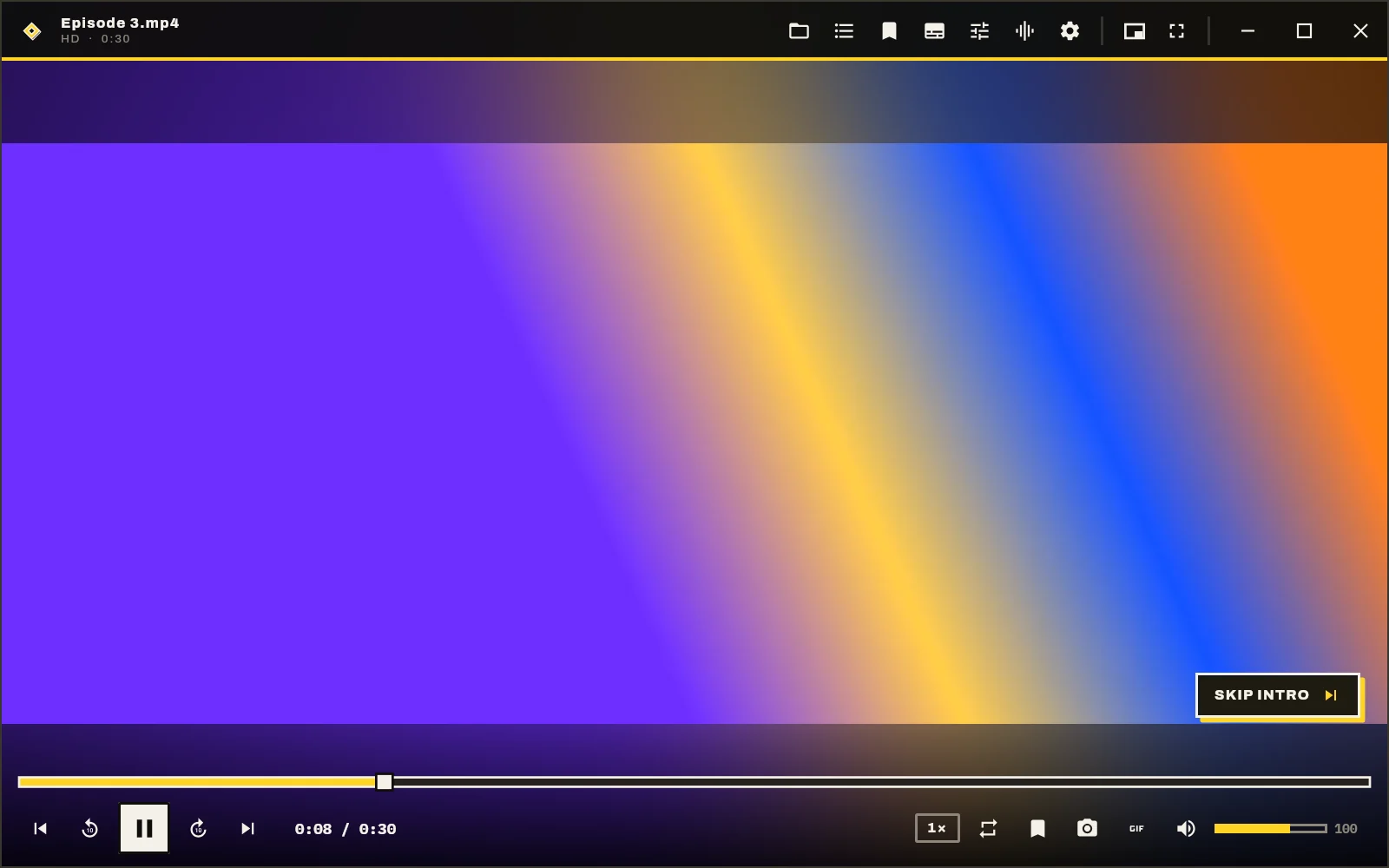
Vectorem's player, for your videos and music. It has its own icon, opens without going through the app, and can become Windows' default player in two clicks.
Pick up where you left off
Your latest files as thumbnails, with the time left. The next episode plays on its own.
Skip intro and credits
Set once per series, then a button, or skip automatically.
Subtitles made on the PC
For a video without subtitles, in 7 languages. Even on a song: the voice is isolated first (optional).
For watching at night
Sleep timer that fades the sound, a “night” sound that keeps voices clear, two subtitles at once.
Coffee break
You lock the PC or unplug the headphones: pause. When you're back, 5 seconds rewind.
Music window
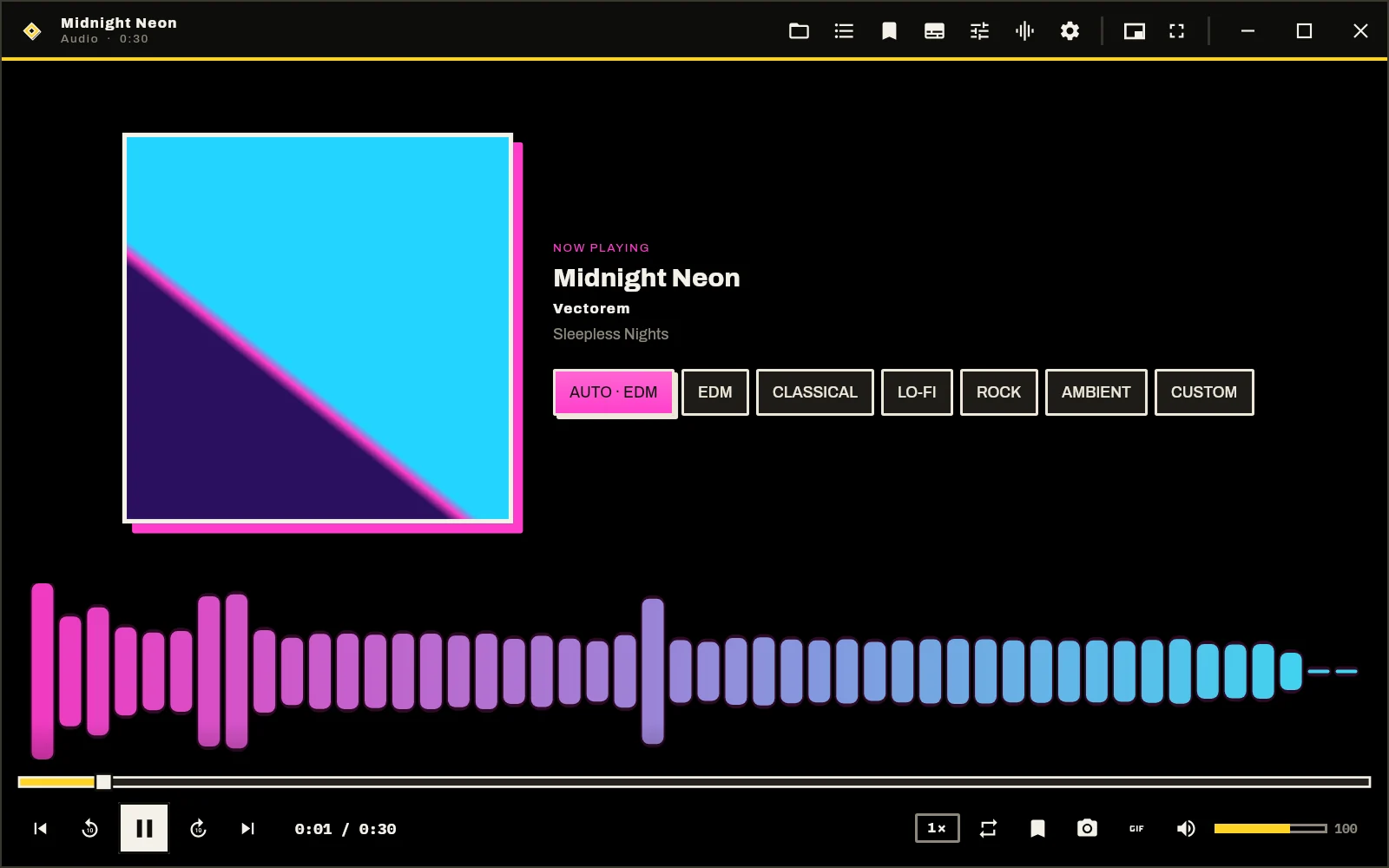
Live spectrum, EDM, classical, lo-fi, rock, ambient presets, or your own colours.
Mini player and ambient light
The video in a corner, always on top. Its colours spill around the picture.
Remote
Play, seek, volume and next track from your paired phone.
Vectorem Vigie
A small tab at the top of the screen that shows what's running: timer, music, download, notifications. Hover to open it, it closes by itself.
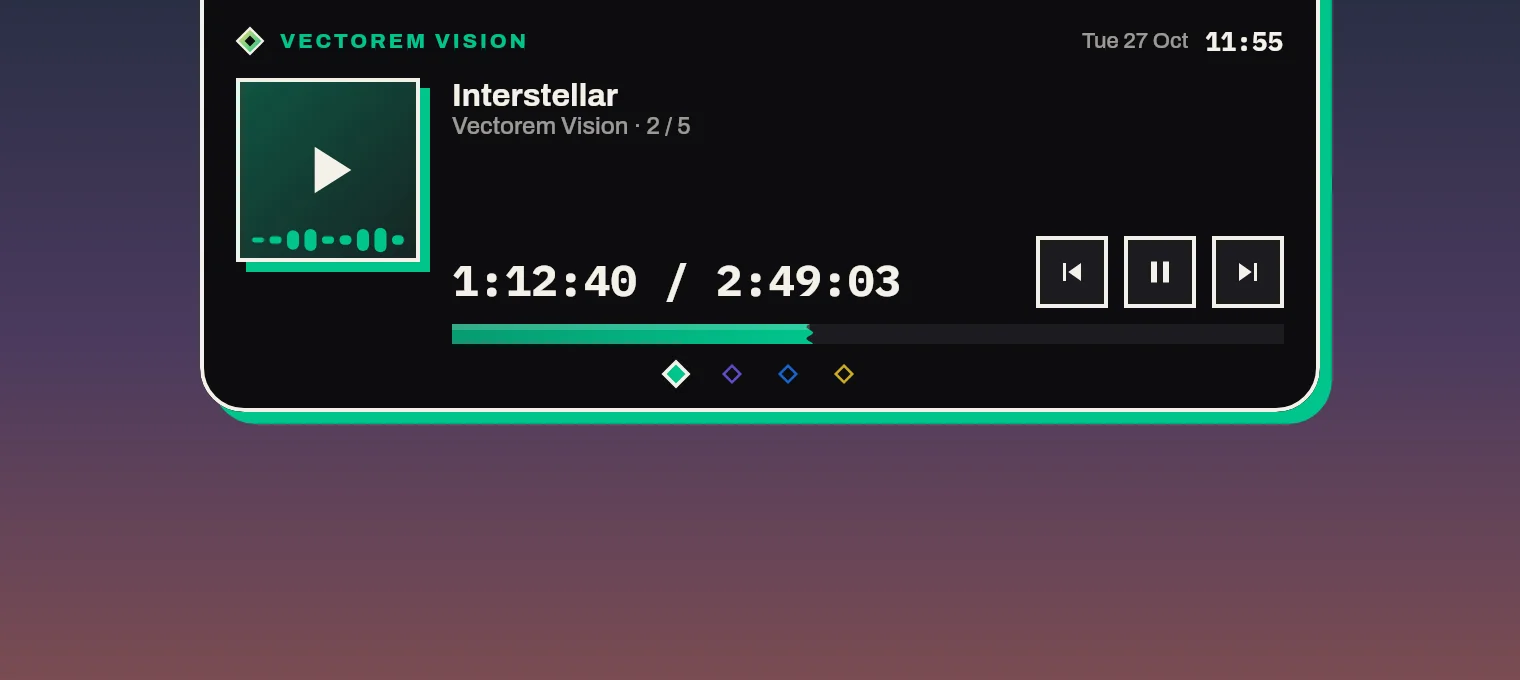
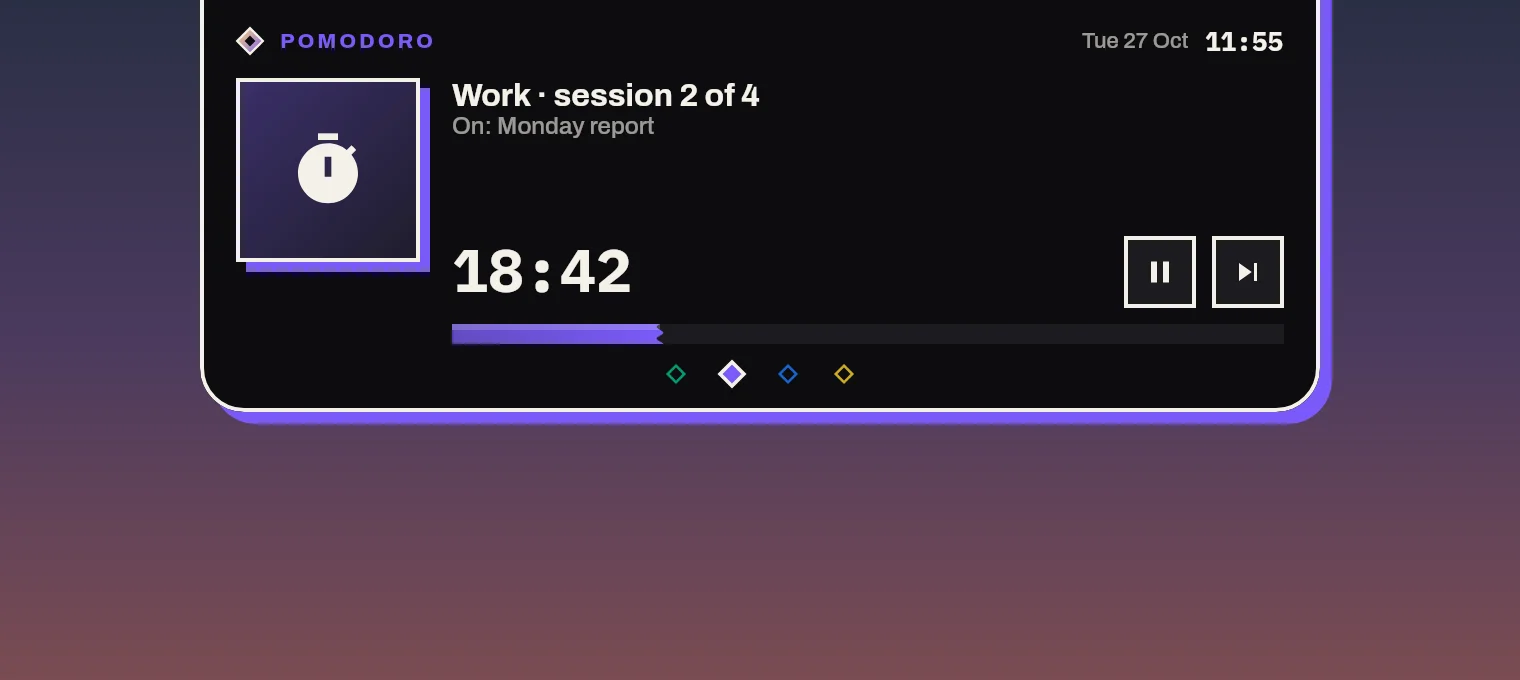

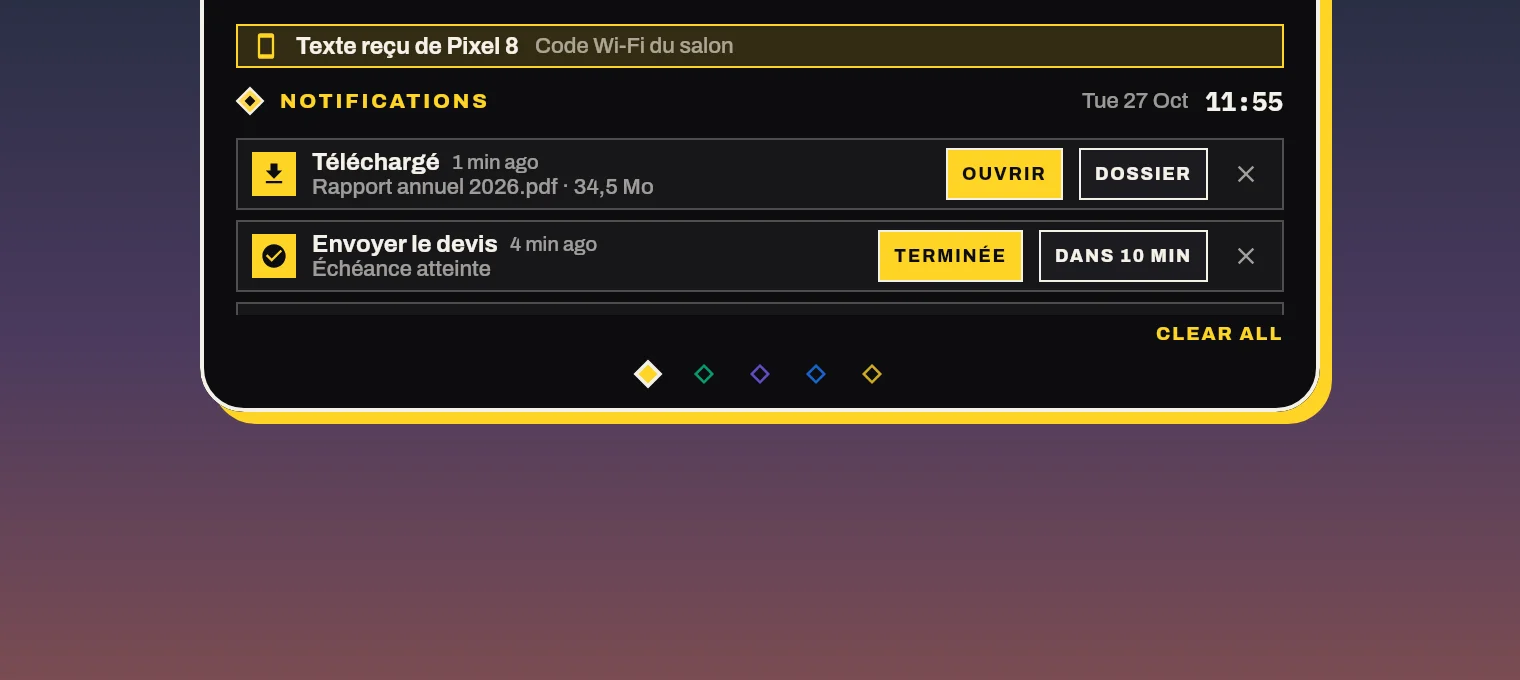
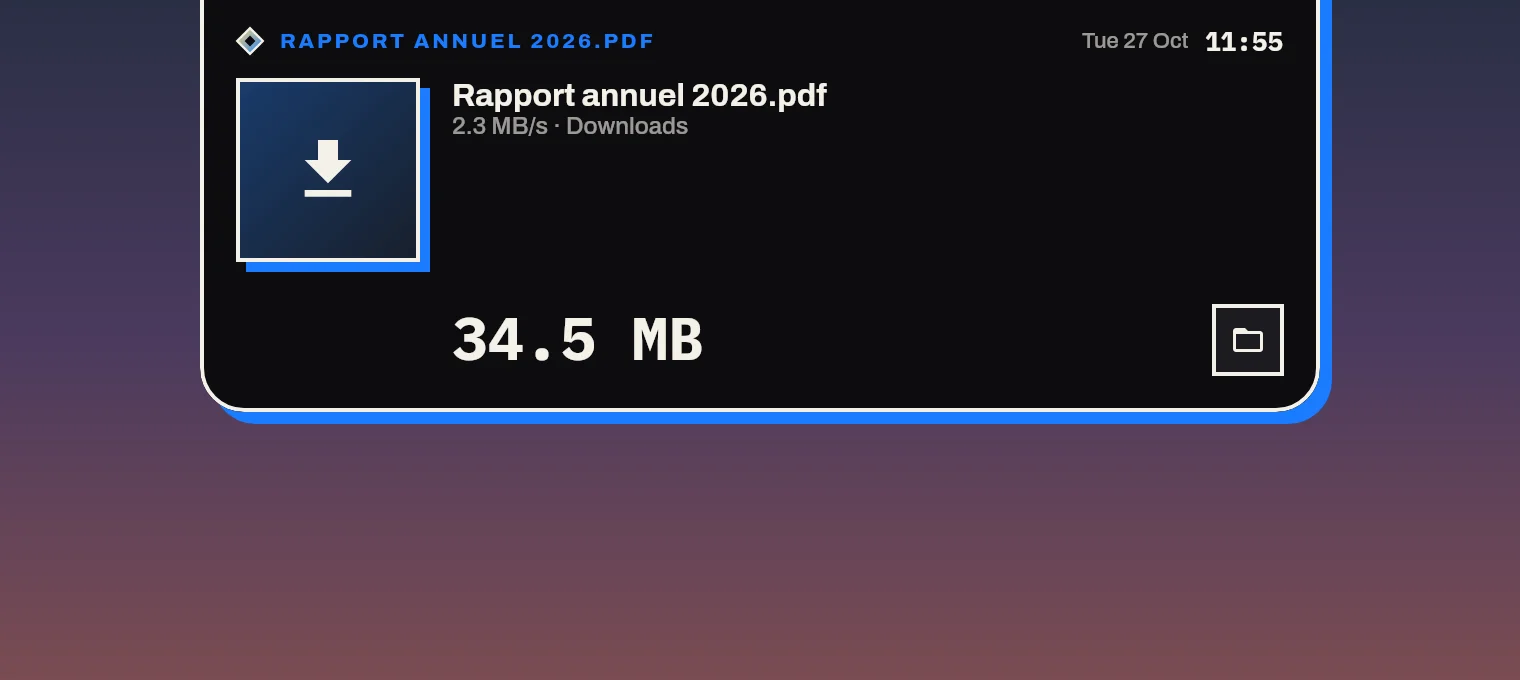
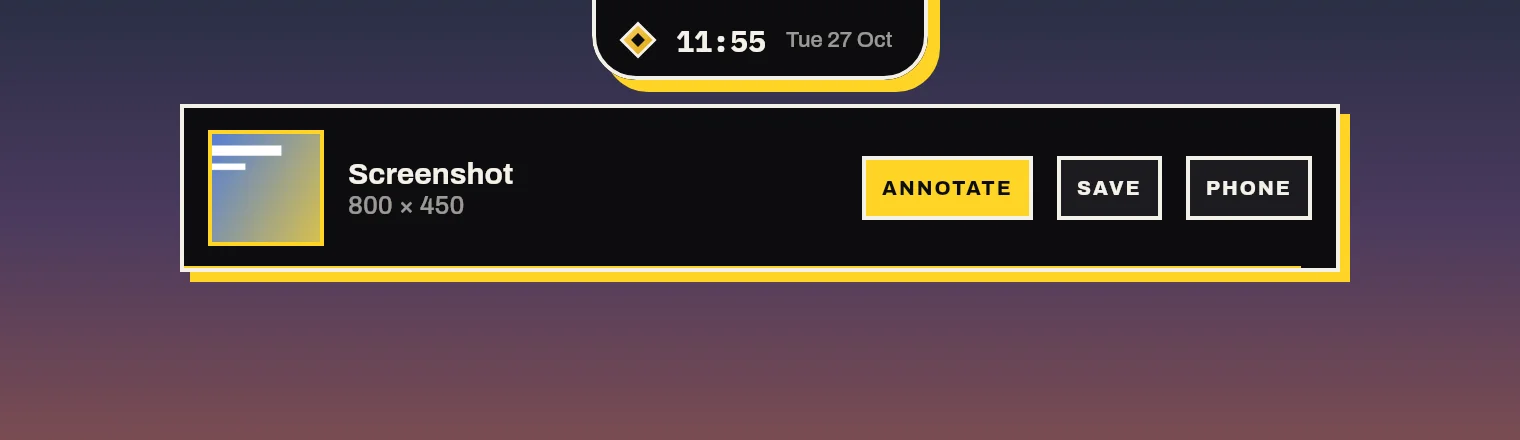
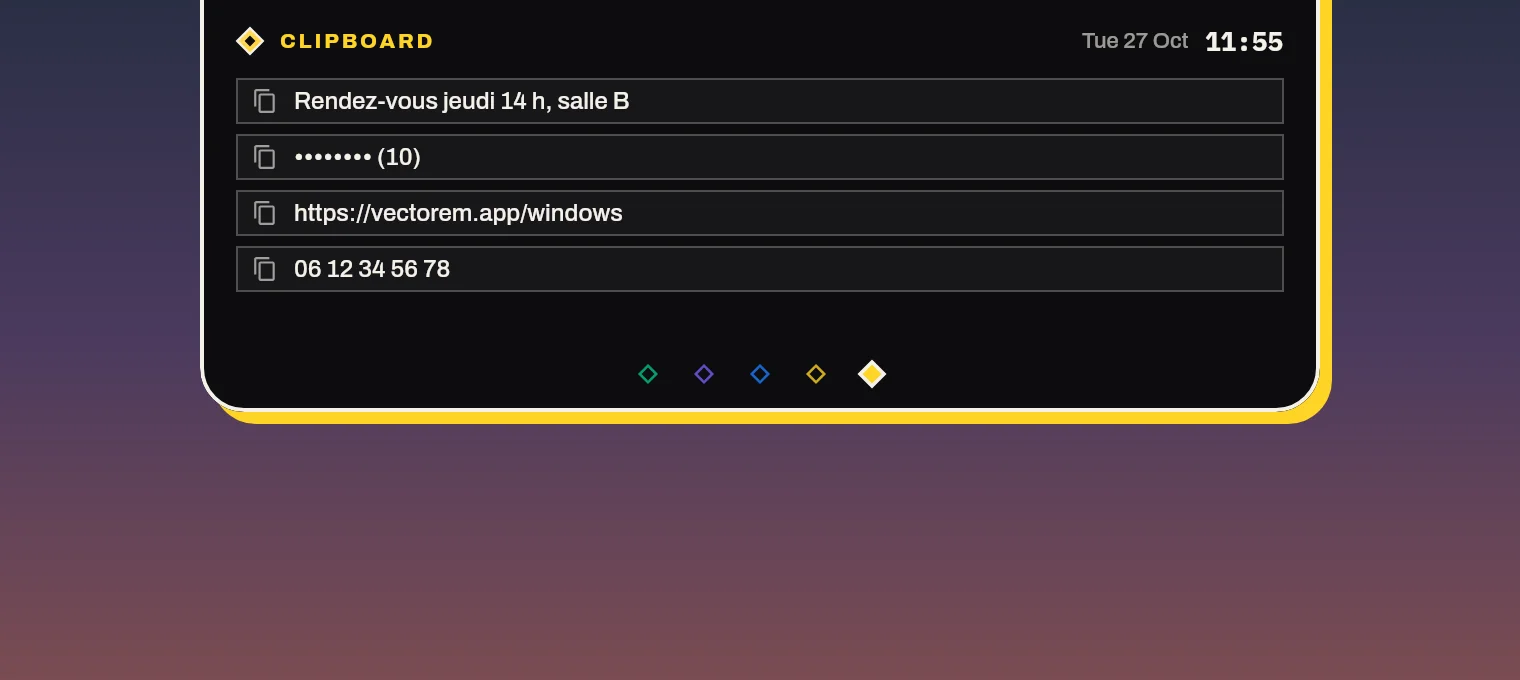
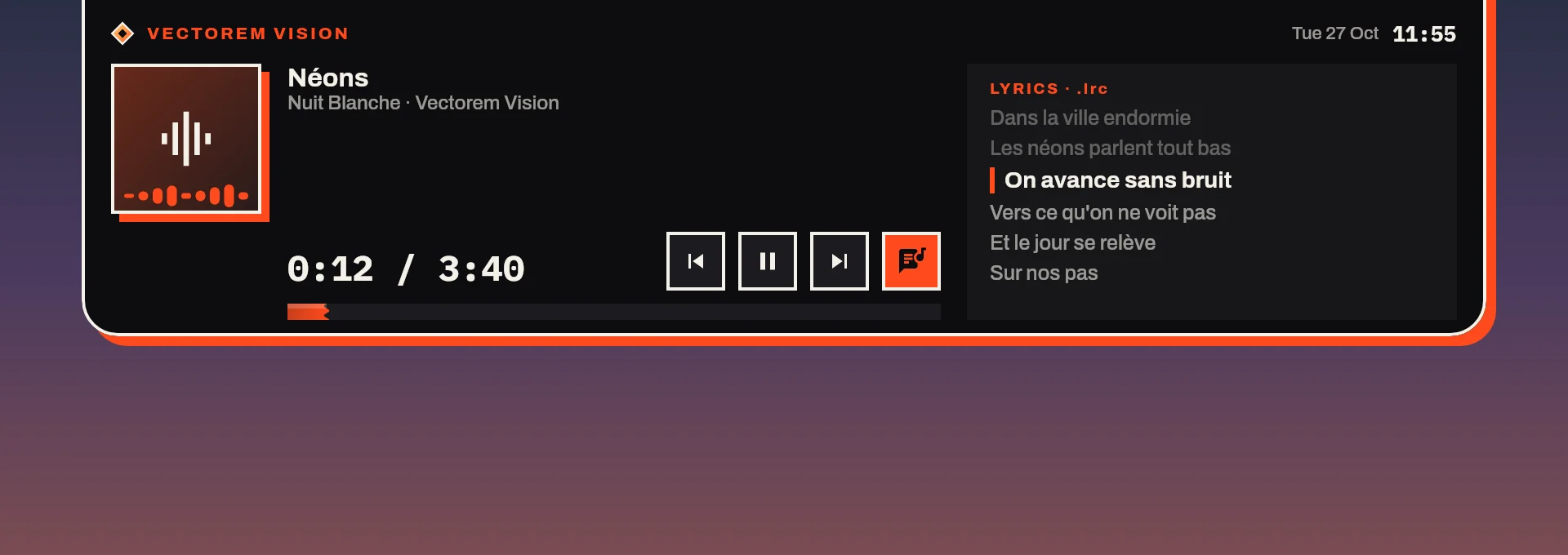


Music from any app (Spotify, browser, Vision): cover, time, play and next track.
Volume, brightness, Caps Lock
A short notice for each change, charger, low battery, Wi-Fi and headphones included.
Meeting mode
Mic and camera on: the Vigie shows it and holds notifications for later.
Drop a file
Drag a file onto the Vigie: the same actions as Vectorem's right-click menu.
Paired phone
Phone battery, received files with Open and Folder.
Lineum
While you draw in Lineum: the project and time spent.
Out of the way
Hidden in full screen and during captures. Almost no work when idle.
Keyboard first, in tabs, always there
Tabs
Several tools open side by side, like in a browser. Ctrl + K to find anything.
Shortcuts everywhere
Colour picker, capture, quick note from any app. Keys can be changed.
Ctrl+Alt+P Ctrl+Alt+S Ctrl+Alt+N
In the taskbar
Timer and Pomodoro progress shows on the icon. Right-click it: quick note, capture, timer, Vision's latest files.
Right-click › Vectorem
On a file in File Explorer: play it, transcribe it, check its hash, convert images, edit a PDF, send it to your phone.
Desktop widgets
Clock, sticky note, calendar, today's tasks, countdown, right on the desktop.
Focus mode
25, 50 or 90 minutes: notifications wait until the end, and keep-awake can keep the PC on.
Like Windows
The real Windows 11 “Open” and “Save as” windows, with Quick access and search.
Your way
Light or dark theme, accent colour, sidebar, text size, high contrast.
Your phone and PC talk to each other
Pair them once by scanning a QR code. Then everything goes over your Wi-Fi, encrypted, with no account and without going through the Internet.
Your data on both
Notes, tasks, streaks, events and reminders synced, edits and deletions included.
Photos and files
Phone to PC: “Share › Send to PC”. PC to phone: right-click › Send to › Vectorem.
Remote
Vectorem Vision, volume, next slide, lock the PC, from the phone's PC tab.
Your PC in your pocket
Start a Pomodoro, keep-awake or a Launcher app on the PC, from your phone.
Three steps, one minute
Download the installer
The button at the top of the page: a single .exe file.
Run it, despite the warning
Windows shows “Windows protected your PC”: “More info”, then “Run anyway”. Why, and how to check the file →
Pick your tools
Installs for your account only, no admin rights. At first launch, say what you often do: Vectorem turns on the right tools.
Get the right package
.deb for Debian, Ubuntu, Mint; .rpm for Fedora, openSUSE; .tar.gz for the rest.
Install it
Double-click it in your file manager, or in a terminal:
sudo apt install ./vectorem_*_amd64.deb
sudo dnf install ./vectorem-*.x86_64.rpm
tar -xzf vectorem-*-linux-x64.tar.gz && ./Vectorem/bin/Vectorem
For Vectorem Vision
The player uses your system's libmpv, if it isn't there already:
sudo apt install libmpv2      # Debian, Ubuntu, Mint
sudo dnf install mpv-libs # FedoraGood to know
Do I need an account?
No. Nothing to sign up for, nothing to connect.
Where is my data?
On your PC, in your user folder (%APPDATA%\Vectorem on Windows, ~/.local/share/vectorem on Linux). It doesn't go to a server. The app checks at most once a day for a new version; you can turn that check off in Settings.
Do I need the Android app?
No, Vectorem for PC works on its own. With a paired phone you get sync, file sending and the remote.
Can Vectorem Vision play my videos by default?
Yes, videos and music. Windows doesn't let an app pick itself: Settings › Startup and window › “Choose” opens the right page, and on Windows 11 a “Set default” button does it all at once.
Does transcription send my files anywhere?
No, it runs on your PC. Only the “isolate the voice” option downloads its model once (166 MB), and only if you turn it on.
Why does Windows show a warning?
Because the installer isn't signed with a certificate yet. Windows warns about any recent program without one. What to do, and how to check the file →
What about Linux?
Yes, since 1.3: .deb package (Debian, Ubuntu, Mint), .rpm (Fedora, openSUSE), or a .tar.gz archive for other distributions (run Vectorem/bin/Vectorem). Vectorem Vision uses your system's libmpv (libmpv2 or mpv-libs package). A few tools stay Windows-only, like the Vigie and Window layouts. One-click updates don't exist on Linux yet: get the package again from this page.
And on Mac?
Not for now.
How do I uninstall?
Windows: Settings › Apps › Vectorem; your data stays in %APPDATA%\Vectorem. Linux: sudo apt remove vectorem (or dnf remove vectorem); your data stays in ~/.local/share/vectorem. Delete that folder to erase everything.